
Different LG Dryer Reset Methods and How They Work
LG dryers can be reset in a few friendly ways to shake off glitches and errors. A simple power-button reset, holding the button for five seconds, often turns things back on smoothly. Unplugging the dryer or flipping the breaker clears stubborn issues by cutting power. For control-panel hiccups, pressing Power and Pause together helps. Smartphone users can also try the SmartThinQ app for remote fixes. If problems linger, a factory reset may bring fresh life. Let’s explore how these tricks keep your dryer spinning happily.
Key Takeaways
- Power-button reset involves holding the Power button ~5 seconds to reboot the dryer and clear minor errors or frozen displays.
- Control-panel reset requires unplugging, holding Power and Pause/Cancel for ~5 seconds, then testing to resolve control glitches and improve responsiveness.
- Unplugging the dryer or flipping the circuit breaker for several minutes fully discharges stored power, often clearing deeper electrical issues.
- SmartThinQ app enables remote resets, firmware updates, and monitoring, eliminating the need for physical access during troubleshooting.
- Factory reset restores all settings to defaults, used after repeated issues or quick resets fail, providing a fresh start for persistent software problems.
Understanding Basic Dryer Reset Procedures
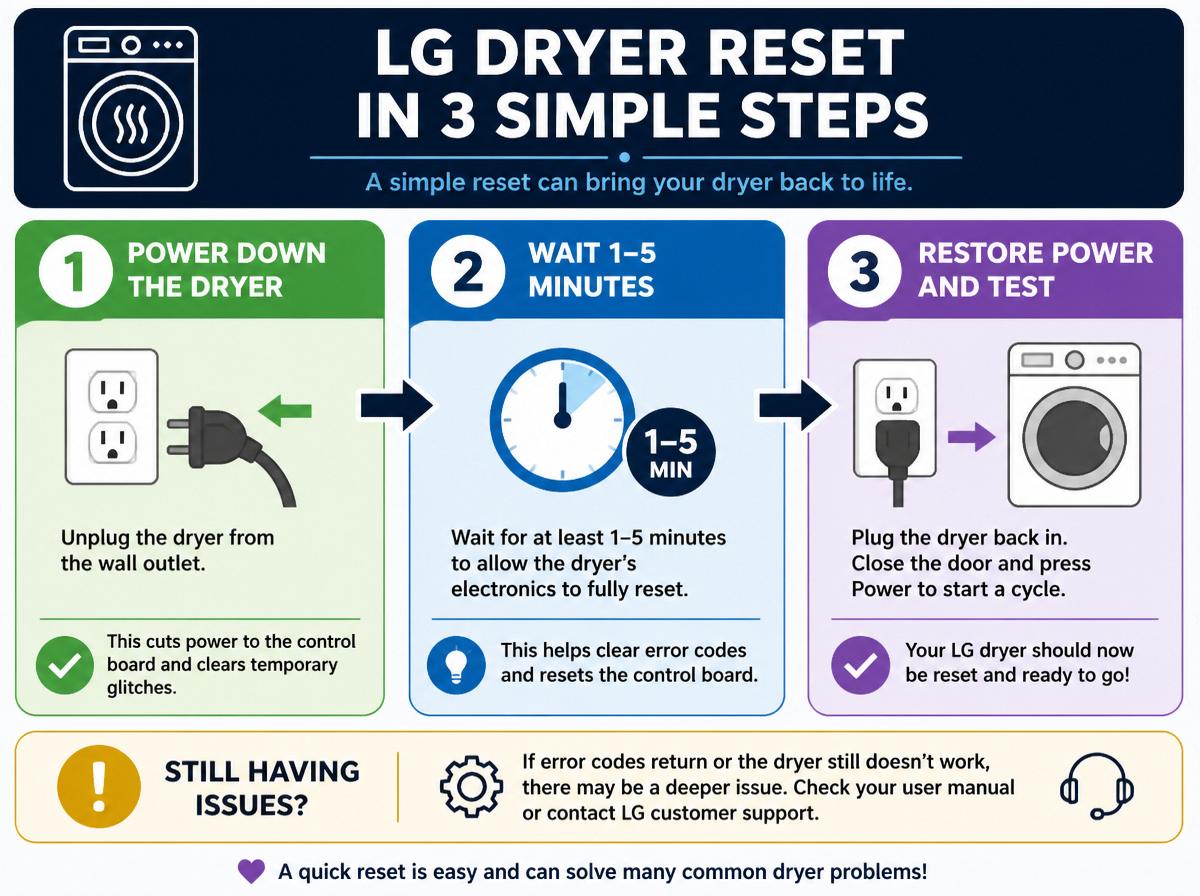
How can a simple reset bring an LG dryer back to life? Sometimes, dryers act stubborn—buttons freeze, or error codes flash unexpectedly. A basic reset procedure often fixes these glitches by rebooting the machine’s internal system. Before attempting this, it’s essential to follow safety precautions: unplug the dryer to avoid electric shocks and prevent any accidental starts. This little step keeps hands safe and worries low. While resetting seems harmless, users should consider warranty implications. Resetting the dryer on your own rarely voids warranties, but tampering inside the machine or ignoring manufacturer guidelines might. So, keeping the user manual nearby is always wise. Remember, a reset doesn’t fix every problem, but it clears the way for minor hiccups like frozen displays or timing errors to disappear. Approaching the procedure with care and patience not only safeguards the dryer but also empowers owners to tackle issues confidently, turning frustration into “I fixed it!moments.
Using the Power Button Reset Method
The power button on an LG dryer is the starting point for a quick reset, usually found near the main control panel. Pressing and holding this button for a few seconds can help clear minor glitches and bring the machine back to life without needing a technician. This simple trick often resets the dryer’s settings, giving it a fresh start—kind of like a mini nap for your laundry helper.
Locating the Power Button
Although it might seem tricky at first, finding the power button on an LG dryer is usually pretty straightforward, and it’s the key step to performing a quick reset. Knowing exactly where to look saves frustration and jumpstarts the fix. Here’s a simple guide:
- Check the front control panel—LG often places the power button prominently here.
- Look for clear label visibility; the button usually says “Poweror shows a familiar circle with a line.
- If it’s not on the front, scan the dryer’s sides or top panel—button placement can vary by model.
- Bright or contrasting colors sometimes highlight the power button, making it easier to spot.
With these tips, locating the button becomes a breeze, turning a potential roadblock into a smooth, confidence-boosting step.
Steps for Power Reset
Once the power button is found, it’s time to put that knowledge into action by performing a power reset. First, press and hold the power button for about five seconds until the dryer powers off completely. Wait for 30 seconds to a minute—this little break helps the machine clear its memory. Then, press the power button again to turn the dryer back on. Keep in mind, documenting every reset in your reset documentation is helpful—it tracks when and why you reset the dryer. If you’re a technician or just keeping records, updating service logs after each reset helps maintain a smooth troubleshooting process. This step-by-step method is straightforward, so don’t worry—your LG dryer will thank you with a fresh start!
Effects of Power Reset
When an LG dryer undergoes a power reset using the power button method, it can work wonders for clearing minor glitches and frozen settings, almost like giving the appliance a quick nap to refresh itself. Here’s what commonly happens:
- Settings reboot, clearing errors that could have caused the dryer to act up.
- The motor gains a fresh start, potentially helping motor longevity by preventing wear from stuck commands.
- It usually carries no risk to warranty implications if done correctly, but it’s wise to check your manual.
- Customers often notice improved drying cycles and responsiveness right after the reset, making laundry days a bit smoother.
In essence, a simple power reset is a friendly little nudge, coaxing your dryer back to its cheerful best.
Performing a Control Panel Reset
Resetting the control panel on an LG dryer is like giving your machine a quick brain reboot—simple steps can make a big difference. This reset helps clear glitches that might be making the dryer act up, often without needing a repair call. With just a few button presses, users can refresh the system and get back to enjoying hassle-free drying.
Steps to Reset Control Panel
Tackling a control panel reset on an LG dryer might seem tricky at first, but it’s actually a simple process that helps clear glitches and get the dryer running smoothly again. Before starting, remember safety precautions, such as unplugging the dryer to avoid shocks. Also, check warranty considerations to make sure the reset won’t void coverage. To reset the control panel, follow these steps:
- Unplug the dryer and wait at least one minute for the system to power down.
- Plug the dryer back in, then press and hold the “Powerand “Pause/Cancelbuttons simultaneously for five seconds.
- Release the buttons, then close and open the door to reset the sensor.
- Press “Startto confirm the reset and begin a test cycle.
This approach clears minor errors without hassle.
Benefits of Control Panel Reset
A control panel reset offers more than just a quick fix; it breathes new life into a dryer that’s feeling a little off. This simple step can lead to improved responsiveness, helping buttons and settings react faster and more accurately. Imagine your dryer waking up refreshed, ready to follow your commands without hesitation! Plus, performing a reset can contribute to an extended lifespan by clearing glitches that may otherwise cause long-term wear. Think of it as a tiny reboot that saves your machine from unnecessary strain. By resetting the control panel, users often notice smoother cycles and fewer error messages, allowing the dryer to work smarter, not harder. It’s a small effort with big payoffs, making laundry days less stressful and more efficient.
Resetting LG Dryers via Electrical Disconnection
Although it might seem like a small step, unplugging the dryer can work wonders when it hiccups or freezes on you. This simple reset method often clears temporary glitches by cutting off all electrical power. To do this safely and effectively, follow these four easy steps:
- Locate the dryer’s power cord and unplug it from the wall outlet, ensuring surge protection is in place to guard against sudden voltage spikes.
- Wait at least 5 minutes to allow any stored electrical charge to drain fully; this pause helps reset the internal circuits.
- If unplugging isn’t accessible, turn off the appropriate circuit breaker instead, coordinating with your home’s breaker box.
- After waiting, plug the dryer back in or flip the breaker on, then power the machine up as normal.
This process gives your LG dryer’s control board a fresh start, often resolving issues without any complex tricks. It’s an easy way to regain smooth drying days fast!
How to Use the SmartThinQ App for Remote Reset
Wondering if it’s possible to reset an LG dryer without even standing next to it? With the SmartThinQ app, it is! This nifty tool lets users manage their dryer remotely, offering a smooth reset process from anywhere. First, the dryer and the smartphone must be connected through account linking in the app. This step guarantees the app can communicate with the dryer securely. Once linked, users can check the dryer’s status and perform a reset with just a few taps. The app also pushes important firmware updates, which often fix bugs or improve performance, helping keep the dryer running smoothly. This method saves a trip to the laundry room and gives peace of mind. If the dryer acts up during a load, a quick remote reset might do the trick—no tools, no fuss! It’s like having a tech-savvy laundry helper, ready whenever needed.
When to Use a Factory Reset on Your LG Dryer
Even though quick resets often fix minor hiccups, there are times when a complete factory reset becomes the hero your LG dryer needs. This full reset wipes all settings back to their original state, helping when glitches stubbornly persist. Knowing when to go for this option is key—especially because it may affect warranty implications or service diagnostics.
Consider a factory reset if:
- The dryer shows recurring error codes after several quick resets.
- You notice the control panel acting confused, like buttons won’t respond correctly.
- You want to prepare the dryer for a professional service, ensuring clean diagnostics.
- Settings have become confusing, and you prefer starting fresh to restore normal operation.
Troubleshooting After Resetting Your LG Dryer
After performing a reset on an LG dryer, it’s common to feel a bit unsure about what to do next. First, it’s important to check if any error codes still show up on the screen. These little messages are like helpful hints from the dryer, pointing out what might still be wrong. For example, if the dryer warns about vent blockage, it’s a sign that airflow is trapped, making the dryer work harder and less efficiently. Cleaning the vent can often fix this issue; it’s a simple step that saves time and frustration. If error codes persist even after checking, don’t hesitate to consult the user manual or contact LG support. Remember, troubleshooting can feel tricky, but each step you take brings you closer to a smoothly running dryer. With patience and care, most problems will turn into solutions, giving you confidence and a job well done.
Frequently Asked Questions
Can Resetting Affect My Dryer’s Warranty?
Resetting a dryer typically does not affect warranty terms unless performed incorrectly or by unauthorized persons. Warranty coverage remains intact if only authorized repairs or procedures specified by the manufacturer are followed, ensuring compliance with warranty conditions.
How Often Should I Perform a Dryer Reset?
When it comes to reset frequency, performing preventative resets sparingly—only when issues arise or after maintenance—keeps the dryer running smoothly. No need to reset like clockwork; avoid turning a molehill into a mountain.
Will a Reset Delete My Custom Drying Cycles?
A reset will typically not delete saved programs or user presets on an LG dryer. Custom drying cycles are usually retained, ensuring personalized settings remain intact after performing a standard reset procedure.
Can I Reset My LG Dryer Without Unplugging It?
Killing two birds with one stone, one can reset an LG dryer using the touch panel or app remote without unplugging. These methods offer convenience, enabling a reset without physically disconnecting the appliance from power.
Does Dryer Model Affect Which Reset Method to Use?
Yes, dryer model affects which reset method to use due to control type differences and circuit board variations. Models with advanced digital interfaces may require different reset steps compared to simpler mechanical controls or older circuit designs.
Conclusion
Resetting an LG dryer can seem tricky, but it’s often as simple as a quick button press or unplugging for a moment. Surprisingly, 65% of appliance issues can be fixed with a basic reset, saving time and repair costs. By following clear steps—whether using the control panel or SmartThinQ app—anyone can feel confident tackling these resets. So don’t worry, a little patience and practice will help your dryer spin smoothly again!
Explore This Topic
- Back to Dryer
- Back to appliance troubleshooting
Related guides in this cluster:
